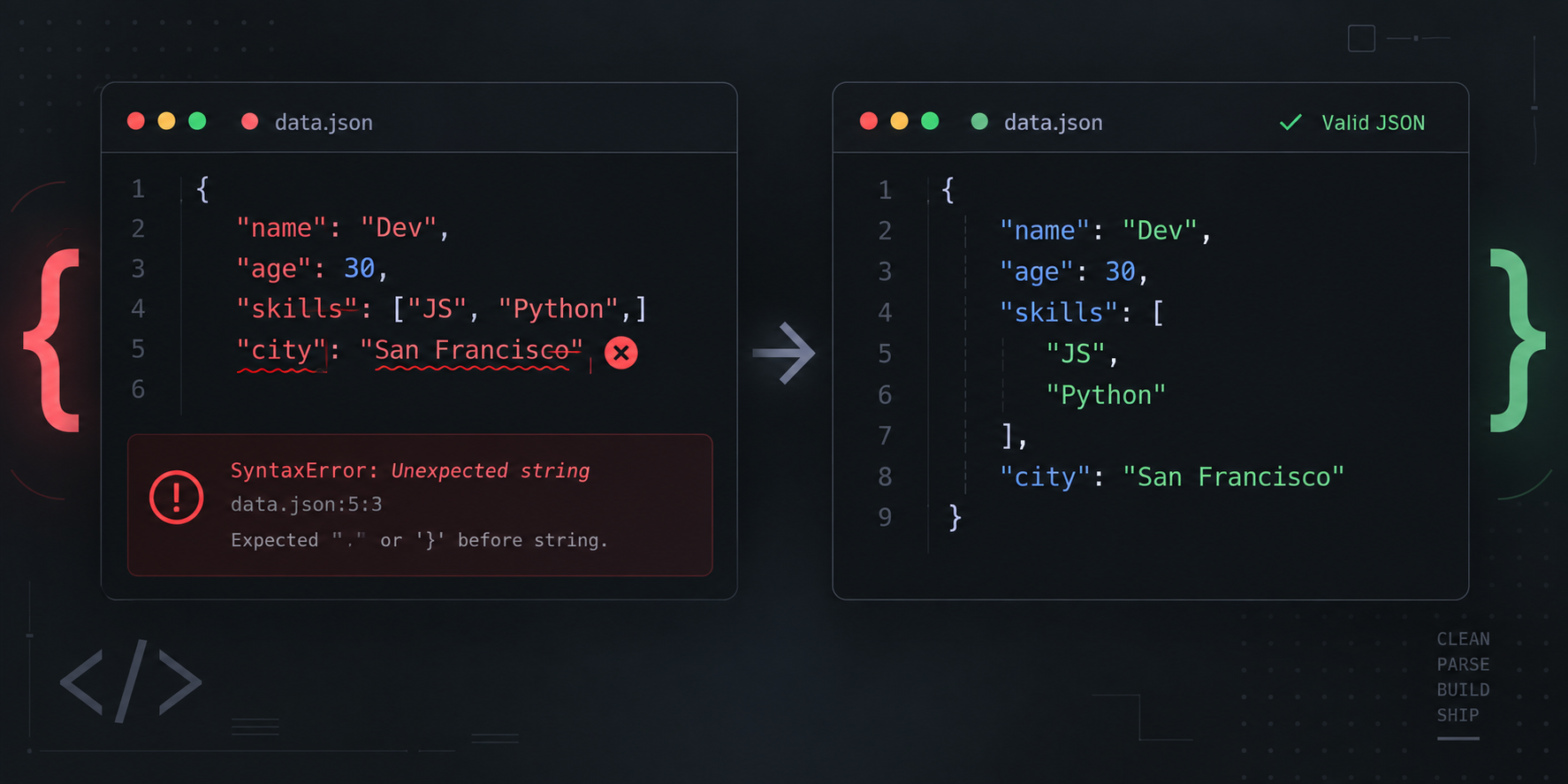
The good news is that most invalid JSON comes from a short list of predictable mistakes: missing commas, incorrect quotes, trailing commas, mismatched brackets, or invalid escape sequences.
The fastest way to debug JSON is to validate it first, fix the reported syntax error, and then format it so the structure is easier to inspect.
Use Codelope's JSON Validator to check your JSON syntax and the JSON Formatter to turn compressed or messy JSON into readable, indented output.
Quick way to fix invalid JSON
Use this workflow whenever JSON fails to parse:
- Paste the JSON into the Codelope JSON Validator.
- Check the reported error location.
- Inspect that line and the line immediately before it.
- Fix the first syntax problem.
- Validate the JSON again.
- Once it is valid, open it in the Codelope JSON Formatter to make nested objects and arrays easier to read.
Fix errors one at a time. A single missing comma or quote can cause several later parser errors even though there is only one real problem.
1. Missing commas
Properties inside an object and items inside an array must be separated by commas.
Invalid JSON
{
  "name": "Alice"
  "email": "[email protected]"
}
The comma after "Alice" is missing.
Fixed JSON
{
  "name": "Alice",
  "email": "[email protected]"
}
If the parser highlights the beginning of a new property, check the previous line first. The actual mistake is often there.
2. Trailing commas
Standard JSON does not allow a comma after the final property or array item.
Invalid JSON
{
  "name": "Alice",
  "age": 28,
}
Fixed JSON
{
  "name": "Alice",
  "age": 28
}
This is a common mistake when JSON is written by hand because some programming languages allow trailing commas in similar-looking objects and arrays.
3. Single quotes instead of double quotes
JSON requires double quotes for property names and string values.
Invalid JSON
{
  'name': 'Alice'
}
Fixed JSON
{
  "name": "Alice"
}
Code copied from Python or JavaScript-like object syntax is a common source of this error.
4. Unquoted property names
Every property name in a JSON object must be a quoted string.
Invalid JSON
{
  name: "Alice",
  age: 28
}
Fixed JSON
{
  "name": "Alice",
  "age": 28
}
A JavaScript object literal may accept unquoted property names, but standard JSON does not.
5. Mismatched braces and brackets
JSON objects use {} and arrays use []. Every opening character must have the correct closing character.
Invalid JSON
{
  "user": {
    "name": "Alice",
    "roles": [
      "admin",
      "editor"
    ]
}
The outer object is missing its closing }.
Fixed JSON
{
  "user": {
    "name": "Alice",
    "roles": [
      "admin",
      "editor"
    ]
  }
}
Nested JSON can make this kind of mistake difficult to spot. Once the JSON can be parsed, the JSON Formatter makes the nesting much easier to inspect.
6. Missing colons
A colon must separate every object key from its value.
Invalid JSON
{
  "name" "Alice",
  "age": 28
}
Fixed JSON
{
  "name": "Alice",
  "age": 28
}
If the parser stops immediately after a property name, check for a missing colon.
7. Unescaped quotes inside strings
Double quotes inside a JSON string must be escaped.
Invalid JSON
{
  "message": "She said "hello" to me."
}
The quote before hello is interpreted as the end of the string.
Fixed JSON
{
  "message": "She said \"hello\" to me."
}
The backslash tells the parser that the inner quotes are part of the text.
8. Invalid backslashes
A backslash starts an escape sequence inside a JSON string. Literal backslashes therefore need to be escaped.
Invalid JSON
{
  "path": "C:\new\test"
}
Sequences such as \n and \t have special meanings inside JSON strings.
Fixed JSON
{
  "path": "C:\\new\\test"
}
This issue commonly appears with Windows paths, regular expressions, and manually generated JSON.
9. Invalid boolean and null values
JSON uses these lowercase literals:
true
false
null
Invalid JSON
{
  "enabled": True,
  "deleted": False,
  "description": None
}
Fixed JSON
{
  "enabled": true,
  "deleted": false,
  "description": null
}
True, False, and None are familiar in Python, but they are not valid JSON literals.
10. Comments inside JSON
Standard JSON does not support comments.
Invalid JSON
{
  "host": "example.com",
  // Production port
  "port": 443
}
Fixed JSON
{
  "host": "example.com",
  "port": 443
}
Some configuration formats are JSON-like and support comments, but that does not make the same content valid standard JSON.
11. Multiple top-level values
A normal JSON document contains one top-level value.
Invalid JSON
{"id": 1}
{"id": 2}
If both objects belong in one JSON document, place them inside an array.
Fixed JSON
[
  {
    "id": 1
  },
  {
    "id": 2
  }
]
Some systems intentionally use newline-delimited JSON, also called NDJSON or JSON Lines. That is a separate format and should not be treated as one standard JSON document.
12. Unquoted string values
Text values must be enclosed in double quotes.
Invalid JSON
{
  "status": active
}
Fixed JSON
{
  "status": "active"
}
Numbers, booleans, and null should remain unquoted when you want those actual data types.
For example:
{
  "count": 42,
  "enabled": true,
  "result": null
}
13. Invalid number syntax
JSON numbers have stricter syntax than numbers in some programming languages.
For example, a leading plus sign is not valid.
Invalid JSON
{
  "change": +5
}
Fixed JSON
{
  "change": 5
}
Values such as NaN and Infinity are also not part of standard JSON.
If an API or application needs to represent those states, use the format documented by that system.
14. Raw line breaks inside strings
A literal line break cannot appear directly inside a JSON string.
Invalid JSON
{
  "message": "First line
Second line"
}
Use the newline escape sequence instead.
Fixed JSON
{
  "message": "First line\nSecond line"
}
This often happens when text from forms, logs, documents, or text areas is manually inserted into JSON.
How to read JSON parser errors
Parser messages vary between browsers, programming languages, APIs, and developer tools. They often include a line, column, character, or byte position.
For example:
JSON.parse('{"name":"Alice",}');
This fails because the object contains a trailing comma.
The reported location is not always the exact character where the mistake began. A parser may continue reading until it reaches a token that proves the JSON is invalid.
That means you should inspect both:
- the reported error position
- the token immediately before it
For large JSON payloads, paste the content into the Codelope JSON Validator instead of manually counting characters or lines.
Example: fixing several JSON errors at once
Consider this input:
{
  'name': 'Alice',
  "active": True,
  "roles": [
    "admin",
    "editor",
  ],
}
It contains four problems:
- Single quotes are used for a property and string value.
Trueis not a valid JSON boolean.- The array has a trailing comma.
- The outer object has a trailing comma.
Corrected:
{
  "name": "Alice",
  "active": true,
  "roles": [
    "admin",
    "editor"
  ]
}
Paste the corrected version into the JSON Validator to confirm that it parses successfully.
JSON validation vs JSON formatting
Validation and formatting solve different parts of the problem.
A JSON validator checks whether the text follows valid JSON syntax.
A JSON formatter presents valid JSON with indentation and line breaks so the structure is easier to read.
For example, this is valid JSON:
{"user":{"id":42,"name":"Alice","roles":["admin","editor"]},"active":true}
The Codelope JSON Formatter can make the same data easier to inspect:
{
  "user": {
    "id": 42,
    "name": "Alice",
    "roles": [
      "admin",
      "editor"
    ]
  },
  "active": true
}
The data has not changed. Only the presentation is different.
A practical debugging workflow is:
- Validate the JSON.
- Fix the first syntax error.
- Validate again.
- Format the valid JSON.
- Review the structure and values.
Valid JSON can still be wrong for an API
Passing a JSON syntax check does not mean an API will accept the data.
This is valid JSON:
{
  "email": 12345,
  "enabled": "banana"
}
But an API might expect:
{
  "email": "[email protected]",
  "enabled": true
}
If the JSON Validator says your document is valid but an API still rejects it, check the API's requirements for:
- required properties
- property names
- expected data types
- allowed values
- object and array nesting
- request body structure
Syntax validation answers:
Is this valid JSON?
An API schema answers:
Is this the JSON structure this endpoint expects?
Those are separate checks.
Avoid creating JSON with string concatenation
When generating JSON in code, use the language's JSON serializer instead of manually assembling the document.
This approach is fragile:
const json = '{"name":"' + name + '","message":"' + message + '"}';
If message contains quotes, backslashes, or line breaks, you have to escape them correctly yourself.
A better JavaScript approach is:
const data = {
  name: "Alice",
  message: 'She said "hello".'
};

const json = JSON.stringify(data);
In Python:
import json

data = {
    "name": "Alice",
    "message": 'She said "hello".'
}

json_text = json.dumps(data)
The serializer handles JSON quoting and escaping rules for you.
Troubleshooting checklist
When JSON will not parse, check these items:
- missing commas between properties or array items
- trailing commas before
}or] - single quotes instead of double quotes
- unquoted property names
- missing colons
- mismatched
{},[] - unescaped quotes inside strings
- incorrect backslashes
True,False, orNoneinstead of JSON literals- comments
- multiple top-level values
- unquoted text values
- invalid number syntax
- raw line breaks inside strings
For large JSON, start with the Codelope JSON Validator. Fix the first reported problem, validate again, and then use the JSON Formatter to review the final structure.
FAQ
What does invalid JSON mean?
Invalid JSON is text that does not follow JSON's syntax rules, so a standard JSON parser cannot read it successfully.
Why does my JSON say "Unexpected token"?
The parser found a character or value that is not valid at that point. Inspect the reported location and the token immediately before it, where the actual mistake may have started.
Can JSON use single quotes?
No. Standard JSON uses double quotes for property names and string values.
Are trailing commas allowed in JSON?
No. Standard JSON does not allow a comma after the final property in an object or the final item in an array.
Can JSON contain comments?
Standard JSON does not support comments. Some JSON-like configuration formats do, but they should not be treated as strict JSON.
Why is valid JSON still rejected by an API?
The syntax may be valid while the data does not match the API's expected schema. Check required fields, field names, data types, allowed values, and nesting.
How do I find an error in a large JSON file?
Paste the JSON into the Codelope JSON Validator, inspect the first reported error and the token before it, correct the issue, and validate again.
Should I validate or format JSON first?
Validate first. Invalid JSON may not be parseable by a formatter. Once it passes validation, use the Codelope JSON Formatter to make the structure easier to inspect.