Start with a strong square source
Use a simple icon that remains recognizable at very small sizes. Fine text and thin details disappear quickly. Keep a high-resolution master so you can generate smaller raster variants without repeatedly enlarging old exports.
Choose formats deliberately
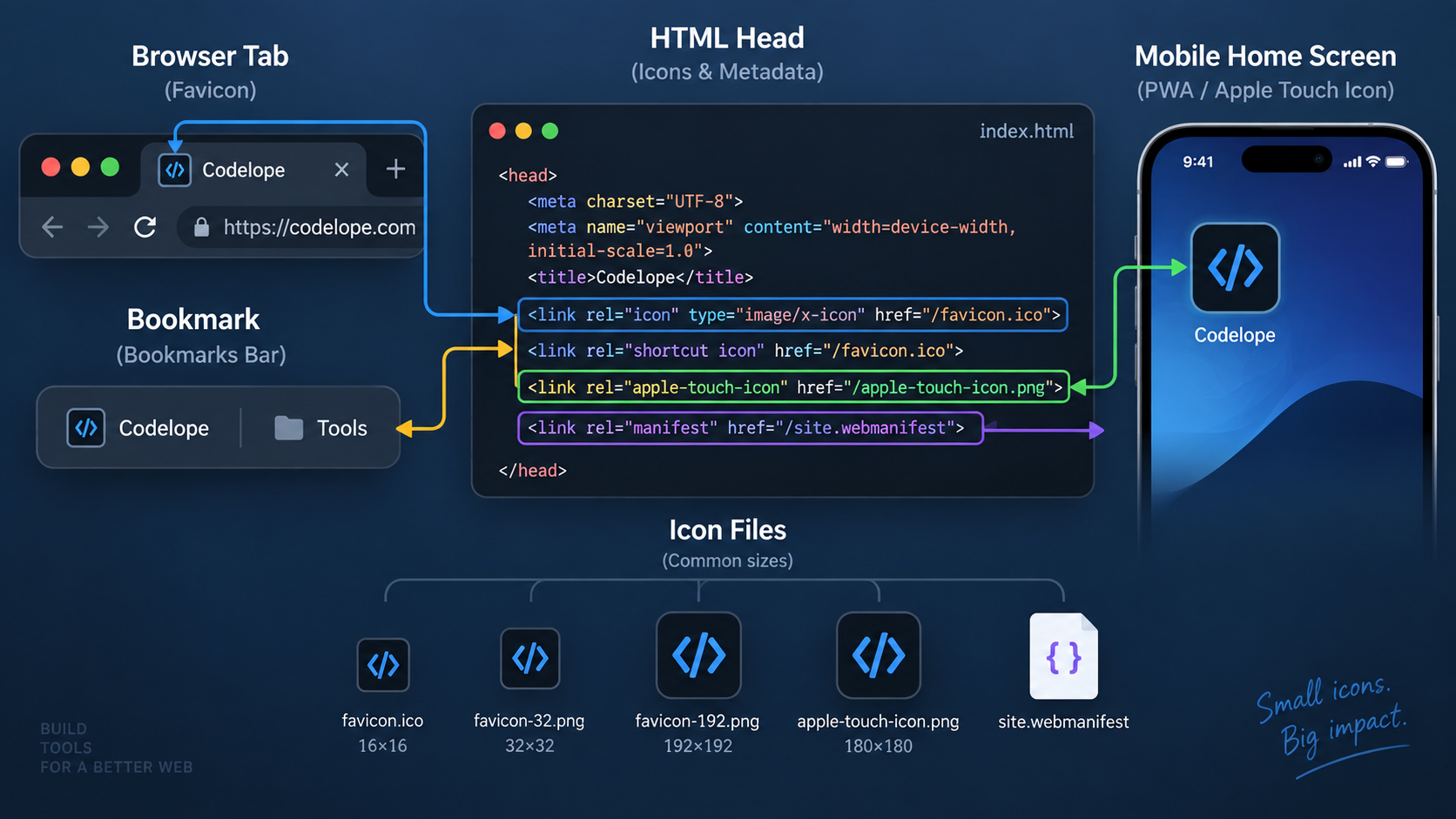
Modern browsers support common web image formats for icons, while .ico remains useful for broad legacy compatibility in some setups. SVG can scale cleanly where supported. Test the actual browsers and devices your audience uses.
Declare assets in the document head
Use Favicon HTML Generator to create <link> elements that point to the files you actually serve. Keep paths correct for subdirectory deployments and avoid references to missing sizes.
Resize from the master
If you need specific raster dimensions, generate them with Image Resizer. Do not simply rename one file to imply a different size.
Cache makes favicon debugging confusing
Browsers can cache favicons aggressively. If a replacement appears stale, verify the requested file and response first, then test a fresh profile/private context or cache-busting deployment strategy rather than repeatedly changing markup.
Keep branding and accessibility in context
A favicon is primarily a visual identifier, not an accessible text label. The page still needs a meaningful title and normal accessibility semantics; the icon does not substitute for them.
FAQ
Do I need dozens of favicon sizes?
Not necessarily. Requirements depend on the surfaces you support. Maintain a deliberate set rather than generating unused files.
Why does my old favicon still show?
Caching is common. Confirm the browser is requesting the new URL and that the server is returning the expected file before changing the HTML again.
Practical next step
Generate a concise set of tags with Favicon HTML Generator, then test real tabs and shortcuts instead of judging the source image alone.
Verify the deployed files, not only the markup
After publishing, request each icon URL directly and confirm its HTTP status, content type, dimensions, and actual image. A perfect <link> tag still fails if the path is case-sensitive on production, the CDN serves an old file, or the asset pipeline renamed the icon. This deployment check catches more real favicon failures than adding extra tags.